

Understanding the Dashboard
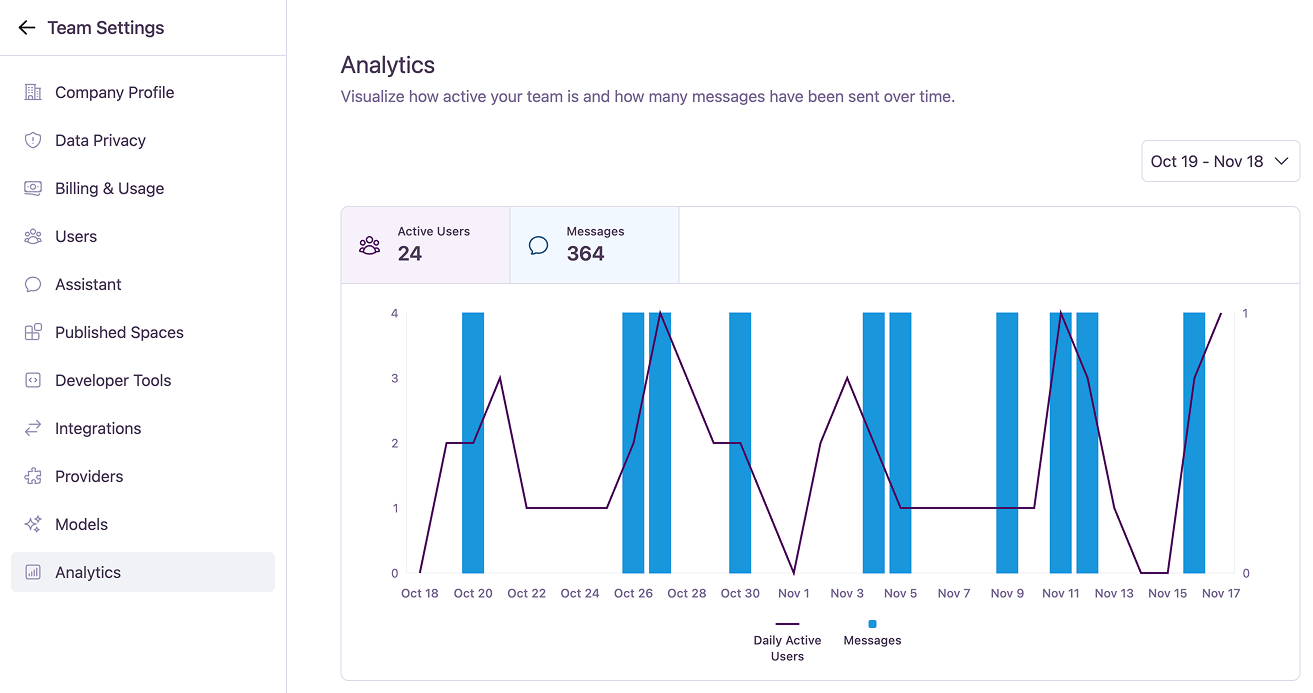
The dashboard offers several key components to help you analyze team activity. If you need to manage the users contributing to these stats, visit the User Management page. For credit consumption related to this usage, check Billing & Usage.Date Range Selector
At the top right, you can select a specific date range to focus your analysis on a given period.
Interactive Summary Cards
Above the chart, summary cards display the total number of Active Users and Messages for the selected date range.These cards also act as interactive toggles. Click on a card to show or hide its corresponding data series on the chart below, allowing you to focus on a single metric.
Activity Chart
The main chart visualizes daily trends. Hovering over a specific day on the chart will provide detailed numbers for that day.
- Daily Active Users: A line graph shows the number of unique users who were active each day.
- Messages: A bar graph shows the total number of messages sent by the team each day.
All data is presented in your local timezone, giving you an accurate view of your team’s workday.