

This is an advanced feature that is not enabled by default. If you are interested in using Published Spaces, please contact our support team at support@omnifact.ai to have it activated for your organization.
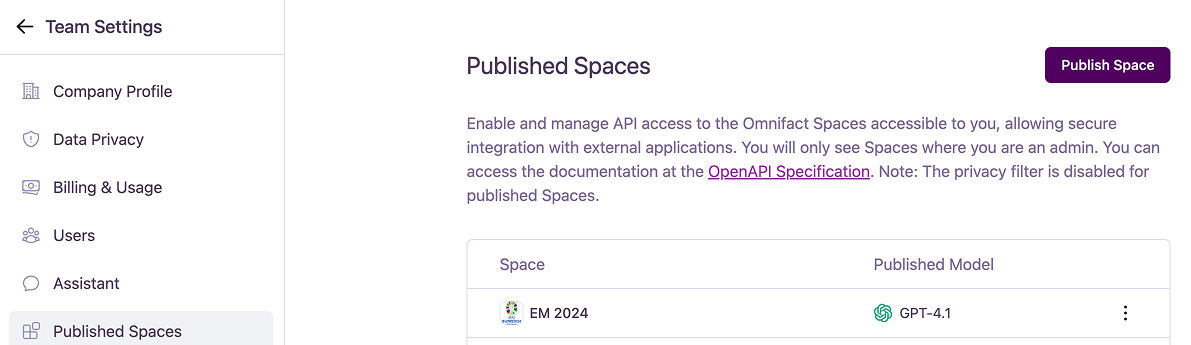
Publishing a New Space
To create a new API endpoint, follow these steps:1
Open the Publish Dialog
Click the “Publish Space” button at the top right of the page.
2
Select a Space and Model
In the “Publish Space” dialog: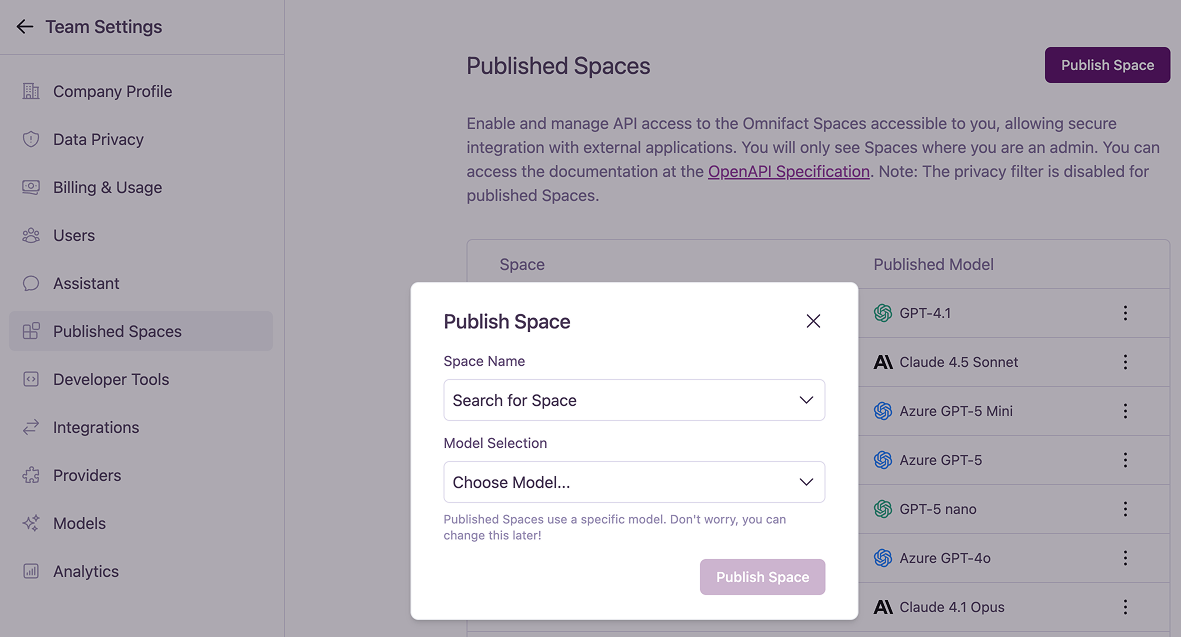
- Choose the Space you want to create an endpoint for from the dropdown menu.
- Select a specific Model that will power this endpoint. You can change the model later if needed.
3
Publish
Click the “Publish Space” button to create the endpoint. Your new Published Space will now appear in the list.
Managing Published Spaces
The main dashboard lists all your currently published Spaces. For each one, you can click the ”…” (more options) menu to manage it.- Edit: Opens a dialog to modify the Published Space. Here you can change the model selection or view and copy the API endpoint URL.
- Copy Endpoint URL: Instantly copies the unique API endpoint to your clipboard.
- Unpublish: Permanently deletes the API endpoint and revokes access. This action cannot be undone.